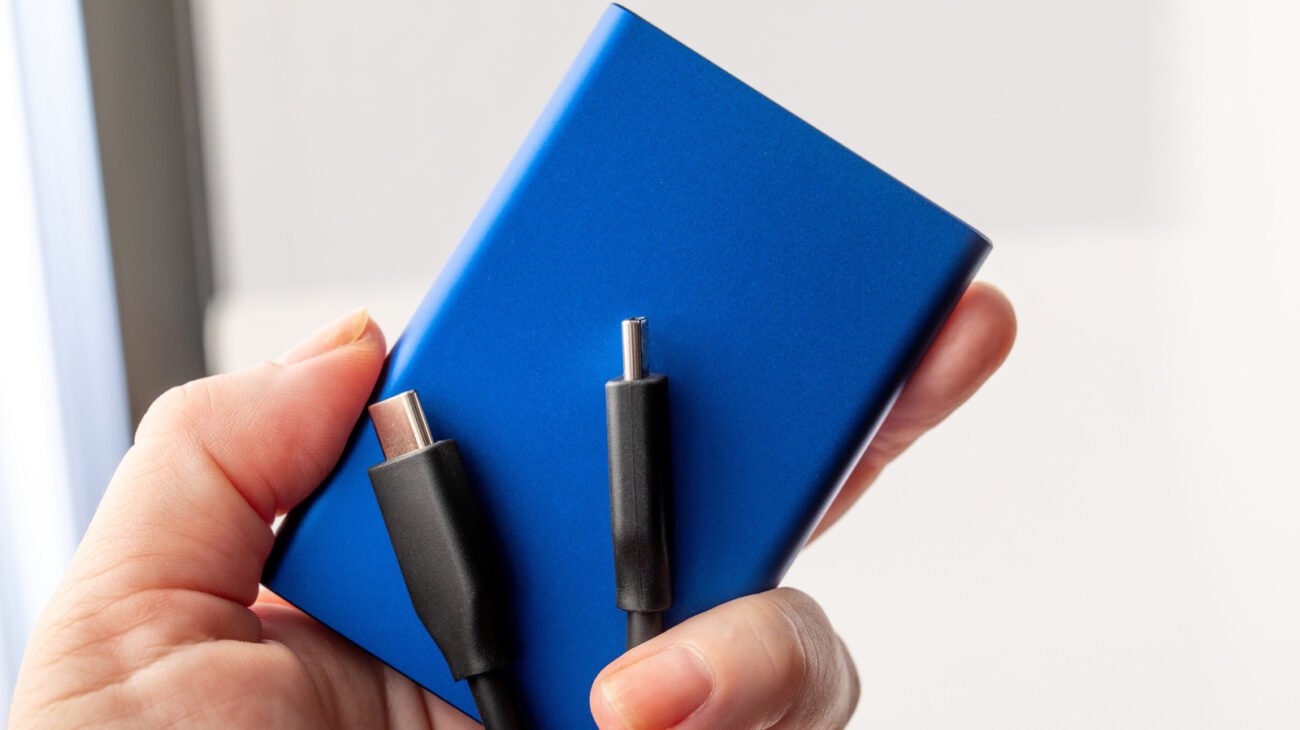
Technical Specifications and Architectural Breakdown
To understand why an external hard drive fails, one must look beyond the storage medium itself and examine the bridge architecture. Modern portable storage consists of three primary components: the storage media (HDD or SSD), the interface controller (SATA-to-USB or NVMe-to-USB), and the enclosure’s power management circuitry. The controller acts as an interpreter, translating the electrical signals from the drive’s internal protocol into the USB 3.2, Thunderbolt, or USB4 standards recognized by the host operating system.
Failure often occurs at the controller level rather than the storage medium. If the controller experiences a voltage fluctuation—often caused by insufficient power delivery from a hub or a faulty USB cable—the device may enter a protective state, preventing it from mounting. Furthermore, file system corruption, often triggered by improper ejection, creates logical errors in the partition table. When the OS attempts to read the drive, it searches for a Master Boot Record (MBR) or GUID Partition Table (GPT). If these headers are corrupted or misaligned, the OS perceives the hardware as present but the volume as inaccessible. For NVMe-based portable SSDs, the complexity increases; these drives utilize the PCIe bus, requiring high-speed data lanes that are significantly more sensitive to signal degradation caused by cable length or electromagnetic interference.
Industry Landscape and Competitive Comparison
The market for portable storage has bifurcated into two distinct categories: high-capacity mechanical hard disk drives (HDDs) and high-performance solid-state drives (SSDs). While HDDs remain the cost-effective choice for cold storage and large-scale backups, SSDs have become the standard for active production environments. The following table outlines the performance and utility profiles of current portable storage technologies.
| Technology Type | Typical Read/Write Speed | Primary Use Case | Durability Profile |
|---|---|---|---|
| External HDD (5400 RPM) | 80–120 MB/s | Backups, Archival | Low (Moving parts) |
| SATA-based SSD | 400–550 MB/s | General File Transfer | High (Shock resistant) |
| NVMe External SSD | 1000–2800 MB/s | Video Editing, Gaming | High (No moving parts) |
The transition toward NVMe architecture has effectively removed the bottleneck of the SATA interface, yet it has introduced new challenges. NVMe drives generate significant thermal output during sustained transfers. Without adequate heat dissipation, the drive may throttle its performance or disconnect entirely to prevent thermal damage. Enterprise users must weigh these thermal considerations against the raw speed requirements of their specific applications.
Practical Consumer & Enterprise Takeaways
For the average consumer, the most effective strategy for preventing data loss is adherence to the 3-2-1 backup rule: three copies of data, on two different media, with one stored off-site. When choosing an external hard drive, the decision should be dictated by the nature of the data. If the drive is intended for a permanent desktop setup, a 3.5-inch HDD with an independent power supply is preferable, as it eliminates the risks associated with bus-powered voltage drops.
For mobile professionals, the focus should be on interface compatibility and build quality. USB-C connectors are the current standard, but users must ensure that their cables support the necessary throughput (e.g., USB 3.2 Gen 2×2) to avoid performance degradation. When troubleshooting, the first step is always to isolate the variable: test the drive on a different machine, use a different cable, and bypass any USB hubs. If the drive is detected in Disk Management (Windows) or Disk Utility (macOS) but shows as “uninitialized” or “unallocated,” do not format the drive. Formatting destroys the existing partition table, making data recovery significantly more complex. Instead, utilize software-based recovery tools that scan for partition signatures to reconstruct the volume metadata.
Frequently Asked Questions
Why does my external hard drive show up in the system report but not in my file manager?
This typically indicates a logical error or a missing drive letter assignment. In Windows, navigate to Disk Management and check if the drive is visible. If it is, right-click the partition and select “Change Drive Letter and Paths” to assign it one. On macOS, use Disk Utility to run “First Aid” on the container, which can repair minor partition table inconsistencies.
Is it safe to use a USB hub to connect my external hard drive?
While convenient, passive USB hubs are a common cause of connection drops. They often fail to provide the consistent voltage required by portable drives. For stable performance, connect high-capacity or high-performance drives directly to the motherboard’s I/O ports. If a hub must be used, ensure it is a powered hub with its own dedicated AC adapter.
What is the difference between a “logical” failure and a “physical” failure?
A logical failure involves software corruption, such as a damaged file system or partition table, which can often be resolved with software tools. A physical failure involves component degradation, such as a failing drive controller, damaged NAND flash, or mechanical head failure in an HDD. Physical failures generally require professional laboratory intervention and cannot be fixed via standard OS diagnostic tools.
The Bottom Line
The external hard drive is a sophisticated piece of engineering that requires regular maintenance and proactive management. By understanding the distinction between interface controllers and storage media, users can better diagnose failures and implement strategies to prevent them. Whether deploying high-speed NVMe drives for professional video production or reliable HDDs for long-term archival, the priority remains the same: data redundancy. Relying on a single drive as a sole point of failure is a flawed strategy. By combining hardware awareness with robust software backup practices, users can ensure their digital assets remain accessible, regardless of the inevitable technical hurdles inherent in portable storage.
